
You have taken the perfect selfie, applied the right filters, and are ready to update your TikTok profile. You upload the image, but the app's built-in cropping tool forces a circular mask over your photo, abruptly cutting off the top of your head or leaving awkward white space on the sides.
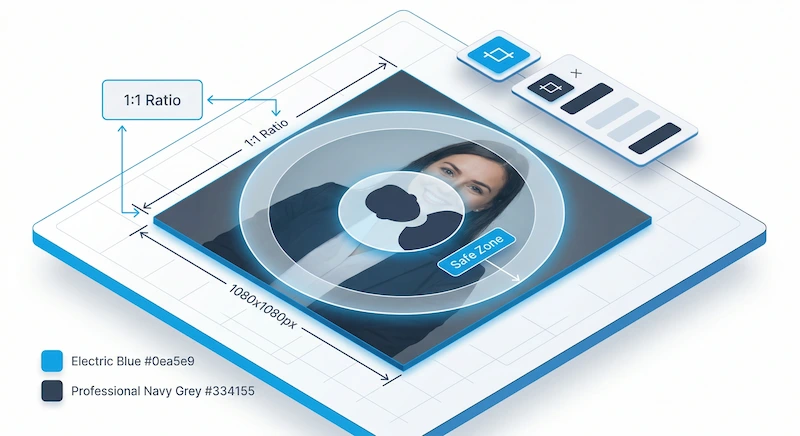
Because social media platforms standardize user avatars into perfect circles, uploading a standard rectangular photo (like a 3:4 or 16:9 shot) without pre-cropping it will almost always result in a bad composition. To ensure your brand looks professional, you need to understand the 1:1 Aspect Ratio and the Circular Safe Zone.
The Golden Rule: Start with a 1:1 Square
Before you even think about the circle, your foundational image must be a perfect square. If you upload a vertical photo to TikTok or Instagram, the app will blindly chop off the top and bottom to force it into a square frame.
| Platform | Aspect Ratio | Recommended Minimum Size | Display Shape |
|---|---|---|---|
| TikTok | 1:1 | 400 x 400 pixels (Minimum 20x20) | Circle |
| 1:1 | 320 x 320 pixels | Circle | |
| YouTube Channel Icon | 1:1 | 800 x 800 pixels | Circle |
| X (Twitter) | 1:1 | 400 x 400 pixels | Circle |
Understanding the "Circular Safe Zone"
Once your image is a perfect 1:1 square, you must visualize a circle drawn inside it, touching all four edges. The four corners of your square photo will be completely erased by the platform.
The Safe Zone is the absolute center of this circle. To guarantee your face, logo, or critical text is visible:
- Keep the subject dead center.
- Leave plenty of negative space (breathing room) around the subject.
- Do not place text or logos near the corners of your original square image.
Do not drastically zoom in on your photo before uploading it. TikTok aggressively compresses profile pictures to save bandwidth. If you zoom in too much during the crop phase, the resulting image will appear highly pixelated once TikTok applies its compression algorithm.
How to Pre-Crop Your Avatar Online
Using a dedicated, browser-based cropping tool before you open your social media app is the best way to guarantee a perfect fit.
- Open a secure, local-processing cropper (like the UpaiPic Image Cropper).
- Upload your original, high-resolution photo.
- In the Ratio Toolbar, click the 1:1 button. This will instantly lock your cropping frame to a perfect square.
- Click and drag the frame to position your face perfectly in the center. Remember to leave space on all four sides for the eventual circular cut.
- Download the perfectly cropped image and upload it directly to TikTok.
Lock Your Aspect Ratio Instantly
Use our free browser-based cropper to force a perfect 1:1 square cut. Our tool locks your canvas to prevent accidental zooming, giving you pixel-perfect control over your new avatar.
Open Precision Cropper